

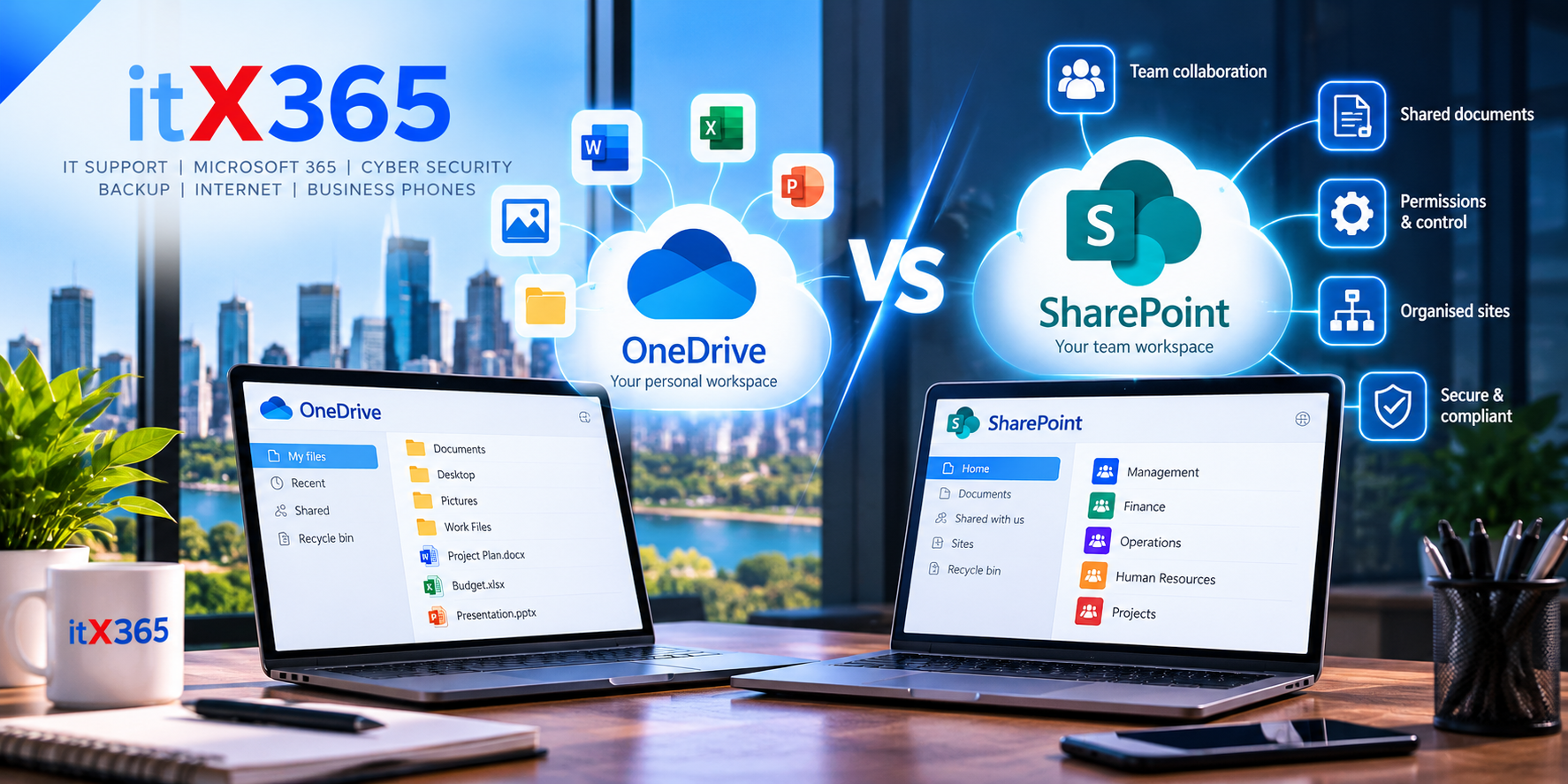
OneDrive vs SharePoint: Which Should Your Business Use?
Here’s the short answer. OneDrive is for your own work files. SharePoint is for the files your team shares. If a file only matters to you, keep it in OneDrive. If someone else needs it, or the business will still need it after you’ve moved on, put it in SharePoint.
People mix them up all the time, and it’s easy to see why. Both come with most Microsoft 365 business plans, they look almost the same, and OneDrive is built on SharePoint underneath. The real difference is who owns the files and who can see them.
Get that wrong and you end up with lost files, broken links and a week of “can you send me the latest version?” emails.
Still not sure which one to use?
Use OneDrive if
- you’re the main person working on the file
- it’s a draft or your own working document
- you’re only sharing it for a short while
Use SharePoint if
- a team uses it regularly
- it’s part of a client, job or project
- the business needs to keep it
- who can open it should depend on their role
If you’re thinking “both”, that’s normal. Most businesses need both.
SharePoint vs OneDrive side by side
| OneDrive | SharePoint | |
|---|---|---|
| Best for | Your own files and drafts | Team and business files |
| Where the files belong | Your own account | The team or business site |
| Sharing | Now and then, for a short while | Day in, day out |
| When someone leaves | Kept for 30 days by default, then deleted | Nothing changes. The files stay put. |
| In Microsoft Teams | Files attached in a chat | Files posted in a channel |
| Good example | Your working spreadsheet | Client and project documents |
When should you use OneDrive?
Use it for drafts, your own notes and working files, and anything that’s mainly yours. It’s fine to share something for a while as you work on it. Once a file becomes part of ongoing team, client or business work, it belongs in SharePoint.
OneDrive can also back up the files in your Desktop, Documents and Pictures folders automatically, so a dead or stolen laptop doesn’t take your files with it. Microsoft calls this Known Folder Move. Your information technology (IT) provider can switch it on for the whole team at once.
When should you use SharePoint?
Anything to do with clients, jobs or projects that more than one person touches. Company policies, procedures, templates and forms. And anything the business needs to keep when a staff member leaves.
SharePoint is also useful for keeping areas such as human resources (HR) or finance separate. A well-planned set of sites lets you control access around teams and roles, rather than managing files one by one.
If you want an intranet with company news, staff information and handy links, that’s SharePoint too. You can click around a demo intranet GBIT Automation built to get a feel for it. Moving files off an old office server is usually where this starts, and it’s worth planning together with your cloud and server setup.
Five mistakes that cause the most trouble
1. The whole business lives in one person’s OneDrive
This usually starts innocently. The owner or office manager sets up a few shared folders in their own OneDrive, and three years later everything is in there.
It works right up until that person goes on leave, changes roles or resigns.
2. Sharing team files from OneDrive
When someone’s account is deleted, their OneDrive is kept for 30 days by default and then removed. Anything shared from it goes too, so clients and staff are left holding links that don’t open.
If other people rely on a file, move it into SharePoint and share it from there.
3. One giant SharePoint site with permissions all over the place
We’ve opened sites where individual folders and files each had their own access settings, and nobody in the business could say who could see what.
Set access around teams and roles, not individual files. A handful of sensibly named sites, each with access set once, is easier to live with. It’s safer too, which matters if cyber security is on your list this year.
4. Syncing everything to every laptop
Syncing SharePoint folders to your computer is handy. Syncing everything isn’t. Very large numbers of synced files can cause slowdowns and sync problems.
Sync the folders you use every day and leave the rest in the cloud until you need them.
5. Emailing attachments instead of links
Every attachment is another copy. Send a SharePoint link instead. Everyone works on the same file, and you still control who can open it.
What does a good Microsoft 365 setup look like?
For most businesses the goal isn’t just moving folders from one place to another. It’s making sure staff can find what they need, sensitive files are kept apart, and nothing disappears when someone leaves.
That’s where itX365 comes in. itX365 looks after the groundwork: Microsoft 365 licences and accounts, security and sign-in, devices, backups and recovery, and the settings that control what happens to someone’s OneDrive when they leave.
For the SharePoint build itself, itX365 works with GBIT Automation, a Perth business that builds SharePoint sites and apps. Together we work out which sites you need and who should see each one, move files off old server drives and out of personal OneDrives, and set access by role.
That way a new starter has what they need on day one, and a leaver loses access on their last day. And if a spreadsheet has somehow become the system that runs part of the business, GBIT Automation can usually turn it into a digital form or a SharePoint list and automate the steps in between with Microsoft 365’s Power Automate.
What does that look like in practice?
For a Perth law firm with offices around Western Australia, the intranet and document sites were set up so access follows each person’s role, run through security groups the office manager looks after.
For a Perth civil contractor, new starters photograph their licences and tickets on their phone during onboarding. The details go straight into the company’s training register in SharePoint, and staff get a text before a ticket expires.
Common questions
Do you need both?
Probably. Most businesses shouldn’t choose between them, because they do different jobs. Use OneDrive for each person’s own working files and SharePoint for what the business shares and needs to keep. Most Microsoft 365 business plans include both.
Is SharePoint part of OneDrive?
Not exactly. They’re separate, but OneDrive is built on SharePoint. Your OneDrive is your personal library, and from inside OneDrive you can also open the SharePoint and Teams files you’ve been given access to.
Where do Microsoft Teams files go?
Files shared in a Teams channel are saved to that team’s SharePoint site. Files attached in a one-on-one or group chat are saved to the sender’s OneDrive.
What happens to an employee’s OneDrive when they leave?
When their Microsoft 365 account is deleted, their OneDrive is kept for 30 days by default, and their manager is given access if one is set. Your administrator can change the 30 days to anything up to 10 years. After that it’s deleted, so move business files into SharePoint before their last day.
Should you sync a SharePoint library or add a shortcut to OneDrive?
Microsoft recommends adding a shortcut to OneDrive. A shortcut follows you to every device and performs better than syncing a whole library. You can’t use both on the same library.
Not sure your Microsoft 365 files are set up properly?
If important company files are sitting in personal OneDrives, old server folders or email attachments, we can help you work out what belongs where. Talk to itX365 on (08) 6144 4200 or get in touch online.
Source: Microsoft, Set up file storage and sharing in Microsoft 365.