

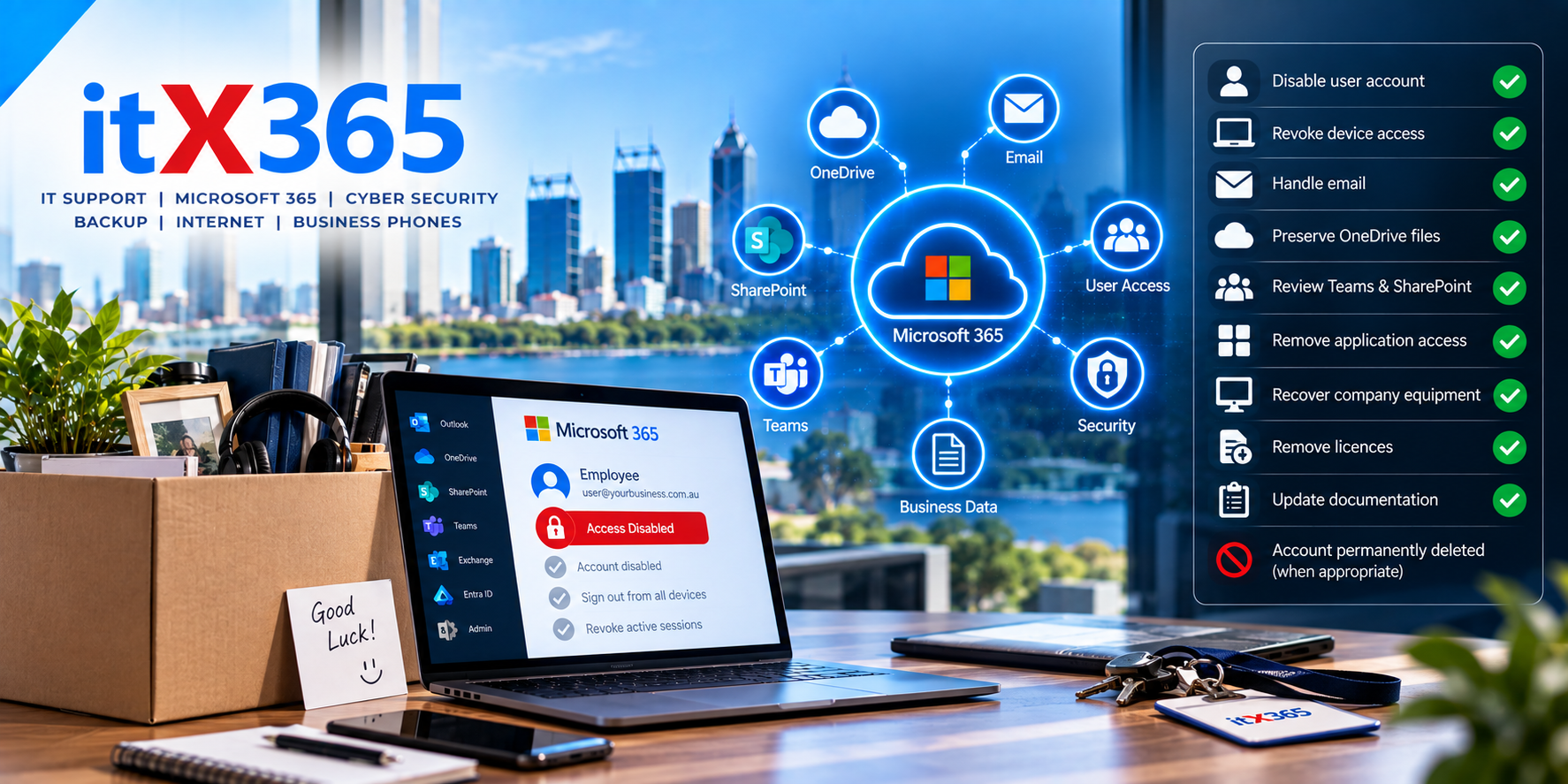
What Should Happen to IT Access When an Employee Leaves Your Business?
When an employee leaves a business, there are usually plenty of things to organise.
Final payroll needs to be processed. Keys might need to be returned. Customers and suppliers may need to be informed. Someone else may need to take over the employee’s responsibilities.
But there’s another important task that shouldn’t be overlooked:
What happens to their IT access?
A departing employee may have access to email, Microsoft 365, OneDrive, SharePoint, business applications, company computers, VPNs and other systems.
Simply changing their email password isn’t necessarily enough.
A proper IT offboarding process helps protect company information while making sure important business data isn’t accidentally lost.
Offboarding should start before the employee leaves
Where possible, IT shouldn’t find out about an employee departure after they’ve already left.
The person responsible for IT should know:
- Who is leaving
- When their access should end
- Whether access needs to be removed immediately
- Who should receive their email
- Who should take ownership of their files
- Which company equipment needs to be returned
- Which business applications they use
The timing matters.
For a normal planned departure, access might remain available until the employee finishes work on their final day.
In other circumstances, access may need to be removed immediately.
That decision belongs with the business — but IT needs clear instructions so it can be implemented correctly.
Disable the account — don’t immediately delete it
One of the most important Microsoft 365 offboarding principles is not to rush into deleting a user’s account.
The account may contain important company information.
That could include email, contacts, calendars and OneDrive files.
Instead, the first priority is generally to prevent the former employee from signing in while preserving the information the business still requires.
Once the data has been reviewed and transferred appropriately, the account and licence can be dealt with according to the organisation’s retention requirements.
Sign the user out of existing sessions
Changing a password is useful, but users may already be signed into Microsoft 365 on multiple devices.
That could include:
- A company computer
- A personal laptop
- A mobile phone
- Outlook
- Microsoft Teams
- OneDrive
- Browser sessions
A proper offboarding process should therefore consider existing sessions and authentication tokens rather than relying only on a password change.
The objective is straightforward:
When access ends, it should actually end.
What happens to the employee’s email?
This needs a business decision.
Some organisations want incoming messages forwarded to another employee.
Others may provide another employee with temporary access to the former user’s mailbox.
In some circumstances, the mailbox may be converted to a shared mailbox so that authorised employees can continue accessing historical email.
There isn’t one correct approach for every organisation.
The important thing is deciding what should happen before deleting the user or removing important information.
Don’t forget OneDrive
Email is usually the first thing businesses think about when somebody leaves.
OneDrive can be just as important.
Employees may have stored business documents in their individual OneDrive account rather than a shared SharePoint location.
Before the account is removed, the organisation should determine whether those files need to be retained or transferred.
This is also a good opportunity to ask whether important company information should have been stored in an individual’s OneDrive in the first place.
Documents that belong to a team or the organisation may be better suited to SharePoint or another shared business location.
Review SharePoint and Teams access
The employee may have had access to multiple SharePoint sites, Teams and shared resources.
Disabling their Microsoft 365 identity can prevent them from signing in, but offboarding is also a useful opportunity to review ownership and permissions.
Was the departing employee the only owner of an important Team?
Were they responsible for a SharePoint site?
Did they manage a shared mailbox?
Did they own Microsoft Forms, workflows or other business resources?
These dependencies are much easier to resolve while the employee’s role and responsibilities are still understood.
Microsoft 365 isn’t the only system
A common mistake is to disable Microsoft 365 and assume the job is finished.
Employees often have access to many other services.
Depending on the business, these could include:
- Accounting software
- CRM systems
- Password managers
- VPN access
- Remote desktop systems
- Business phone systems
- Websites
- Social media accounts
- Domain or DNS platforms
- Cloud applications
- Industry-specific software
- Supplier portals
The organisation should maintain enough documentation to know which systems employees may have access to.
Without that visibility, accounts can remain active long after someone has left.
Shared passwords create problems
Employee departures highlight one of the biggest problems with shared accounts.
Imagine five employees all know the password to the same service.
One employee leaves.
How do you remove only that person’s access?
Usually, you can’t.
The password needs to be changed and redistributed to everyone else.
Wherever practical, employees should therefore have individual user accounts rather than sharing credentials.
Individual identities provide better security, accountability and offboarding.
Administrator access deserves special attention
If the departing employee had administrator privileges, their offboarding requires additional care.
Administrator access might exist in Microsoft 365, business applications, networking equipment, websites, domains or other systems.
These accounts can have extensive control over the organisation’s technology.
Businesses should regularly review who has administrative privileges and remove access when it is no longer required.
This follows the same principle we discussed in our AI security article:
People and applications should only have the access they actually need.
Recover company equipment
IT offboarding isn’t only about accounts.
Company-owned equipment should also be accounted for.
That might include:
- Laptop or desktop computer
- Mobile phone
- Tablet
- Headset
- Security keys
- Chargers and accessories
- Other company equipment
When equipment is returned, it shouldn’t automatically be handed directly to the next employee.
IT should check the device, protect or transfer any required information and prepare it appropriately for reuse.
What if the employee used a personal device?
This can make offboarding more complicated.
An employee may have configured company email, Teams, OneDrive or other applications on a personal phone or computer.
Businesses that allow personal devices should understand how company information is protected and what can be removed when the employment relationship ends.
This is one area where proper device management and Microsoft 365 security policies can provide considerably better control.
Backups still matter
Even with a well-managed offboarding process, mistakes happen.
Important email or files may be deleted before anybody realises they’re needed.
This is another reason businesses should understand their Microsoft 365 backup and retention strategy.
A backup shouldn’t replace proper offboarding.
It provides another recovery option if something goes wrong.
Remove licences when they’re no longer required
Microsoft 365 licences cost money.
Once the user’s information has been preserved appropriately and the account no longer requires licensed services, licences can potentially be removed and reassigned.
However, licence removal shouldn’t be the first step.
Understand what happens to the user’s mailbox, OneDrive and other information before changing licensing.
Saving one month’s licence cost isn’t worth accidentally losing important business data.
Create a repeatable onboarding and offboarding process
Employee departures shouldn’t require everyone to remember what happened last time.
Create a checklist.
The same applies when somebody joins the business.
A good onboarding process makes sure new employees receive the correct computer, Microsoft 365 account, applications and permissions.
A good offboarding process reverses that access when they leave.
This creates consistency and reduces the likelihood that something important will be forgotten.
IT access belongs to the business
Ultimately, business systems and information shouldn’t depend on individual employees.
The organisation should maintain control over its Microsoft 365 environment, domains, applications, passwords and company information.
Employees will inevitably come and go.
A well-managed IT environment should make that a normal administrative process rather than a security emergency.
Employee offboarding with itX365
For our managed IT clients, itX365 can assist with the technical side of employee onboarding and offboarding.
That can include Microsoft 365 accounts, authentication, computers, email, OneDrive, SharePoint, business applications and other managed services.
The business tells us who is joining or leaving, when it should happen and what should happen to their information.
We handle the agreed technical changes.
That creates a repeatable process and helps ensure important access isn’t accidentally left behind.
When did you last check your former employee accounts?
Here’s a useful exercise:
Look at the user accounts in your Microsoft 365 environment.
Does everyone listed still work for the business?
If you’re not sure, it may be worth reviewing your user accounts and access.
Talk to itX365 if you’d like help reviewing Microsoft 365 users, permissions or your employee onboarding and offboarding process.